How to bid for spots from the Statistics page?
This guide is for Pro users who need to change spot bids for multiple campaigns directly from the Statistics page.
Guide
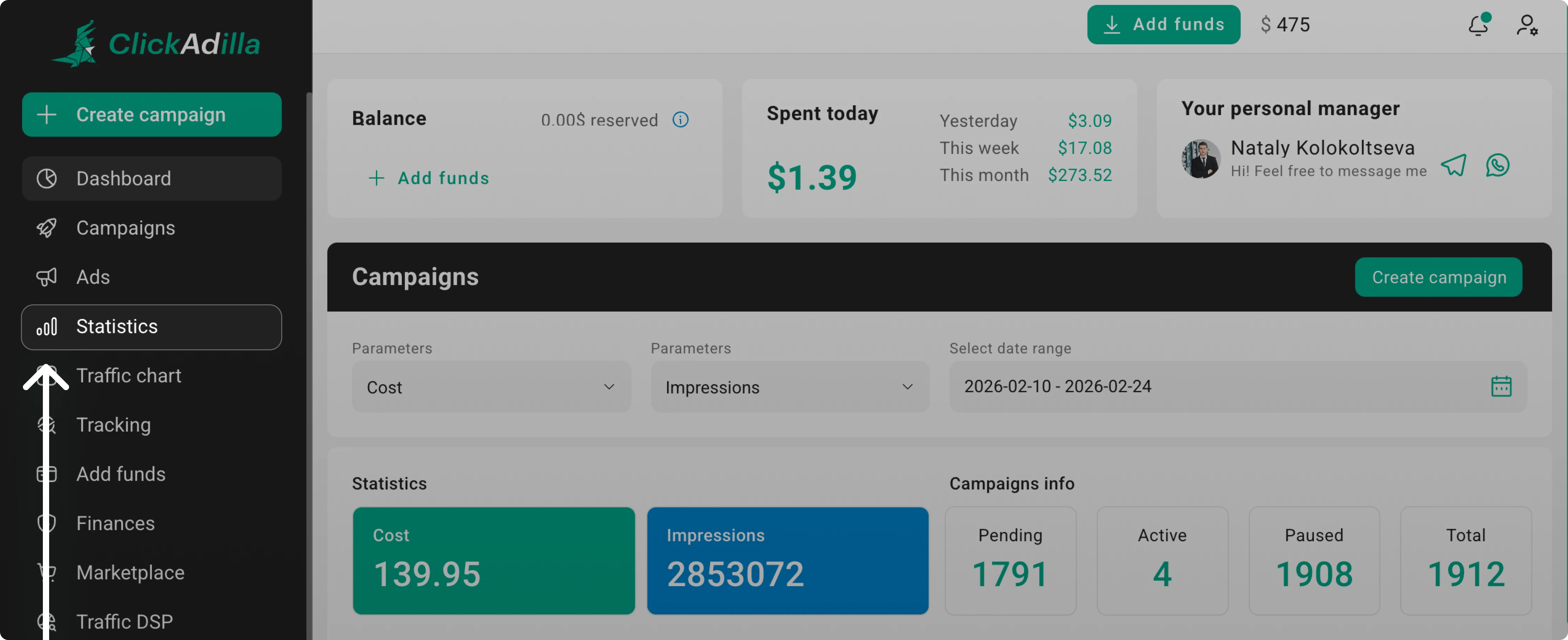
Step 1. Open the Statistics page from the left menu.
Step 2. Select the campaigns you need to edit.
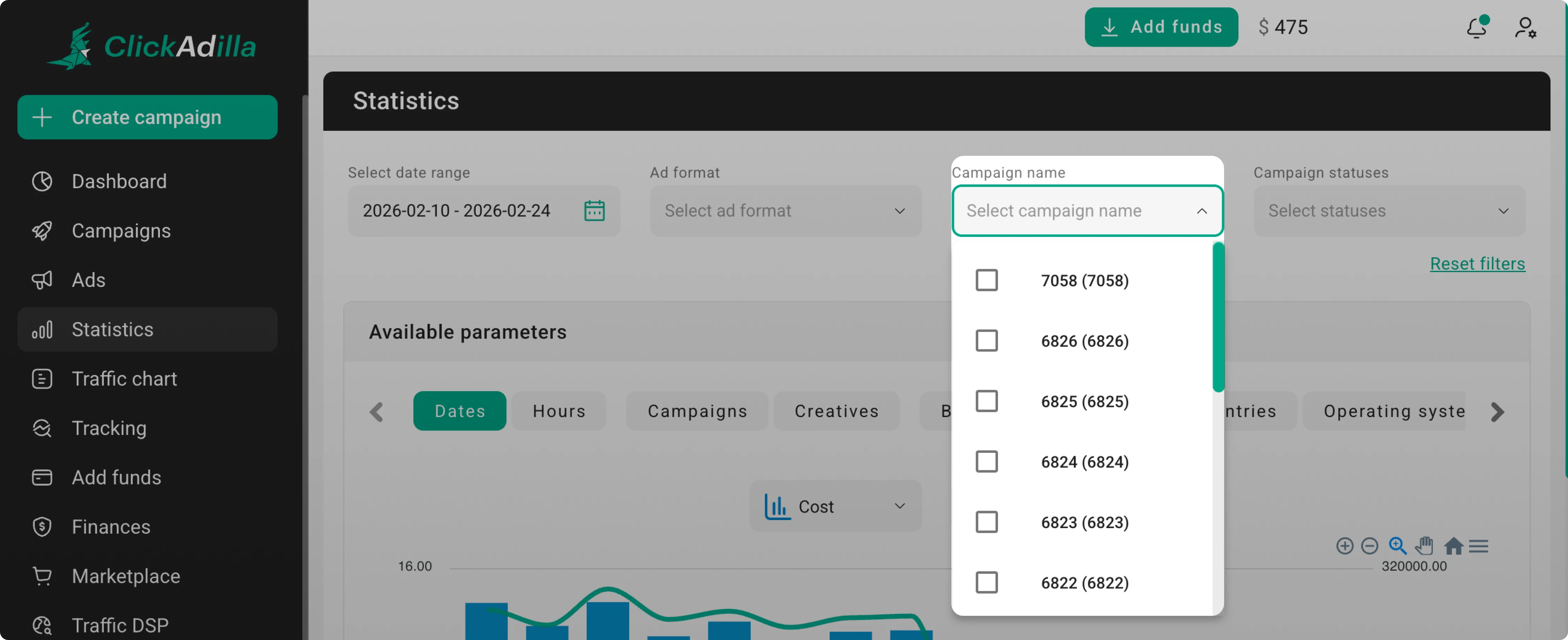
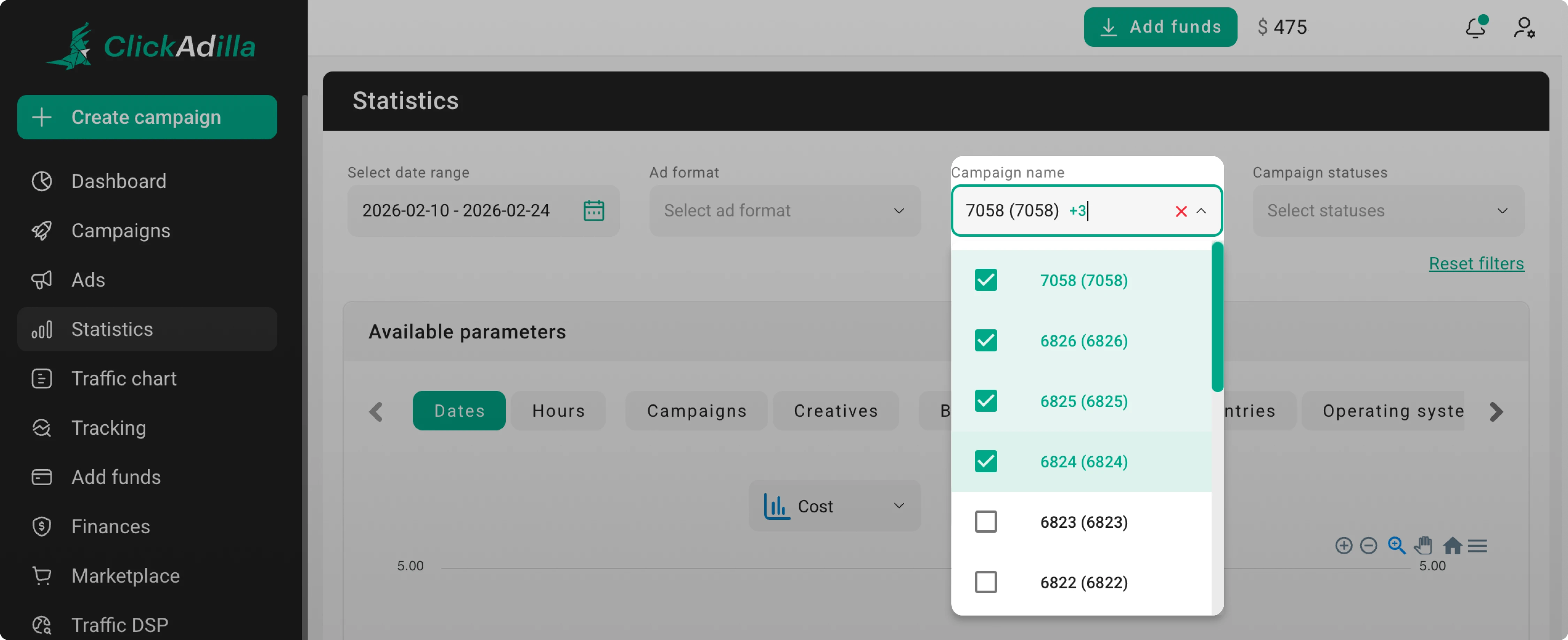 This feature is useful to work with several campaigns at once.
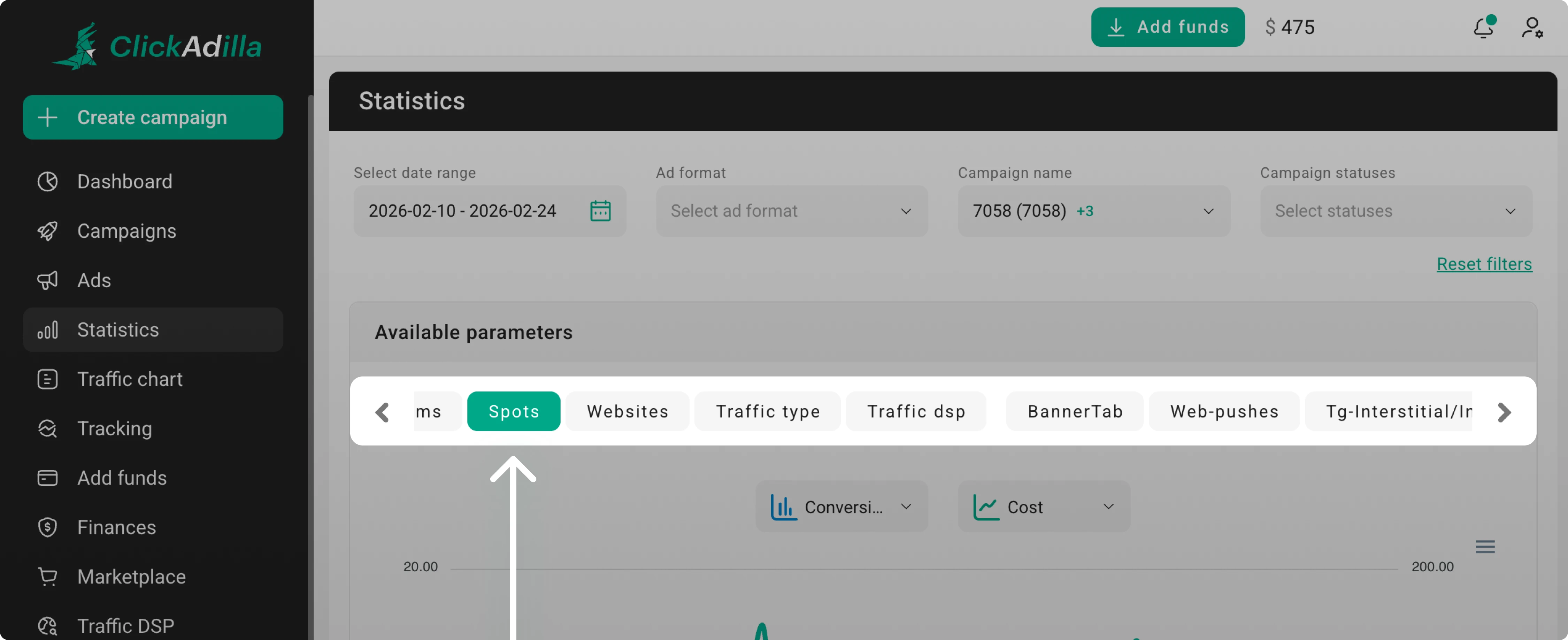
Step 3. Scroll the tabs to the right and click Spots.
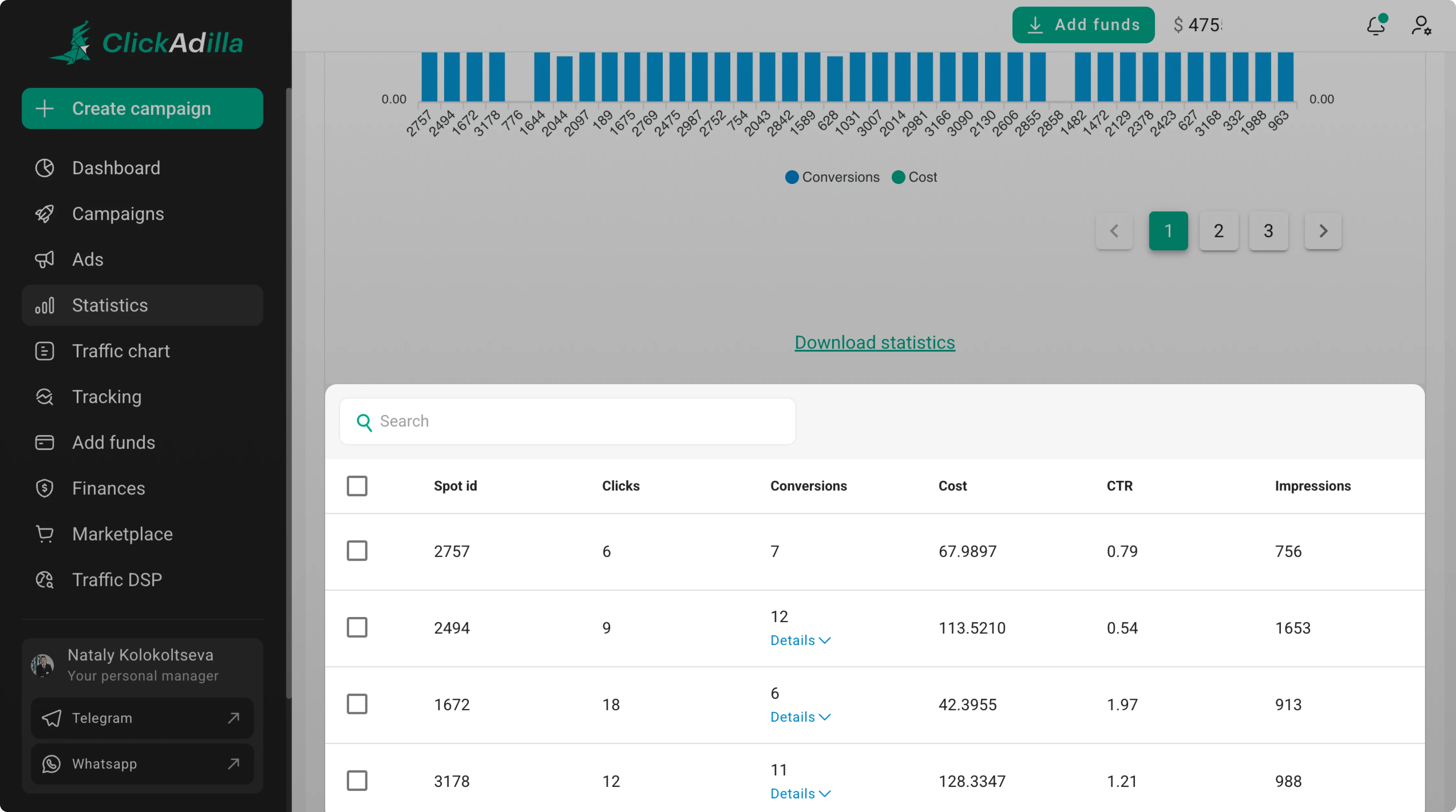
Step 4. Scroll down to the spots list.
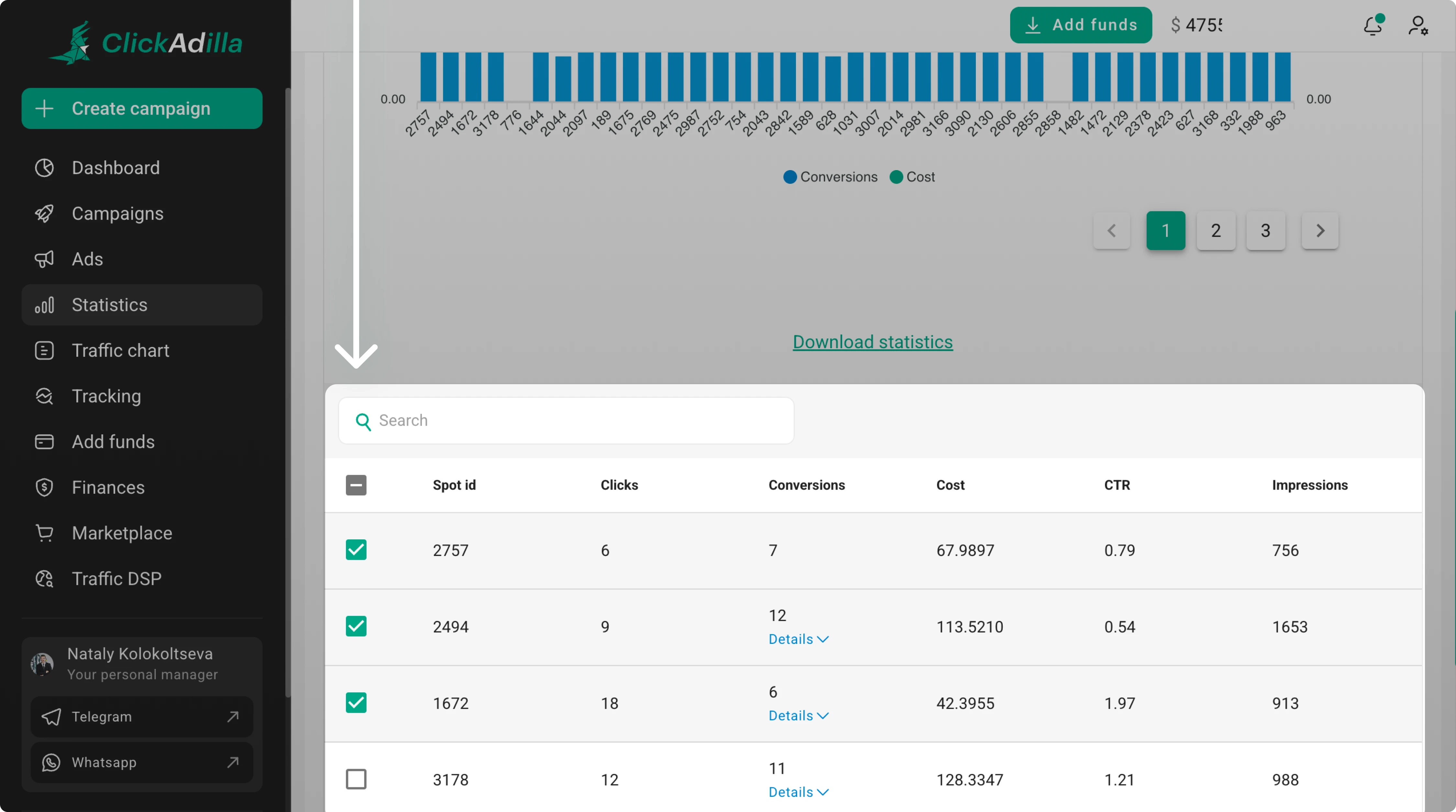
Step 5. Select the spots you want to update.
Step 6. Click Add bid.
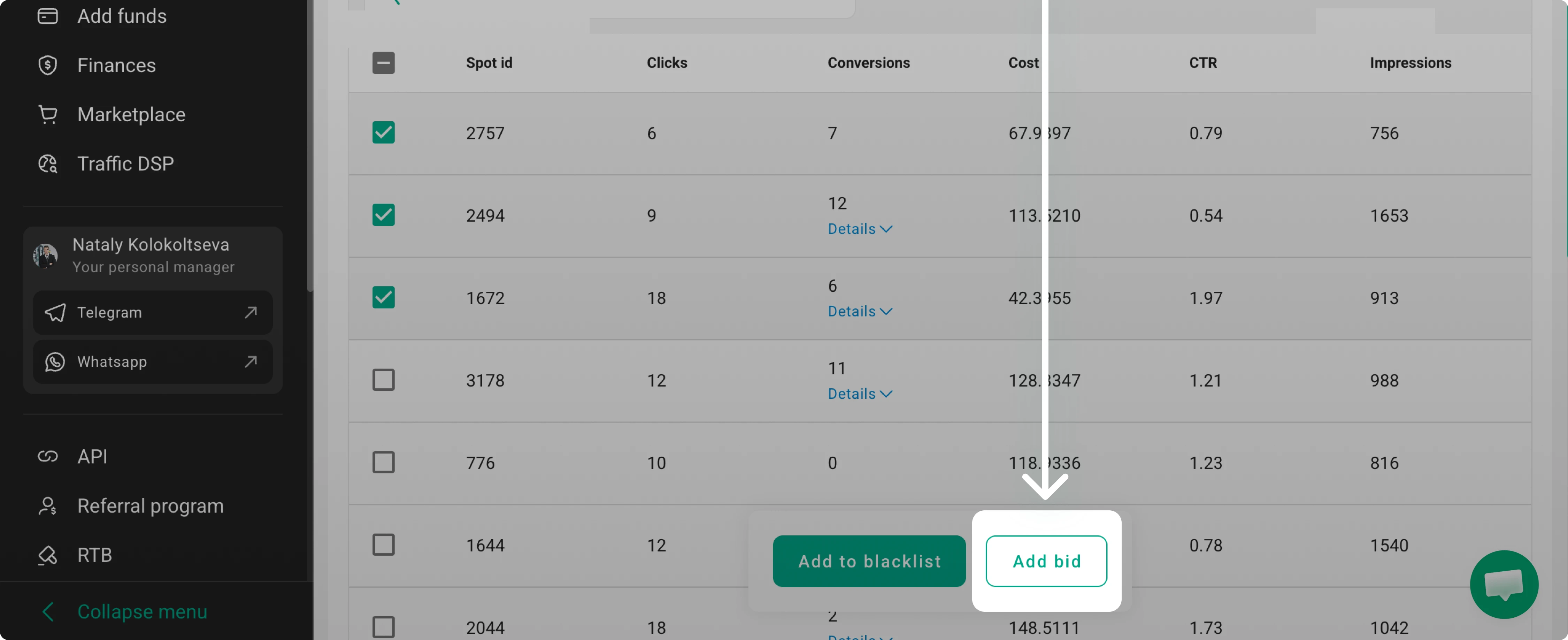 This button appears only after at least one spot is selected.
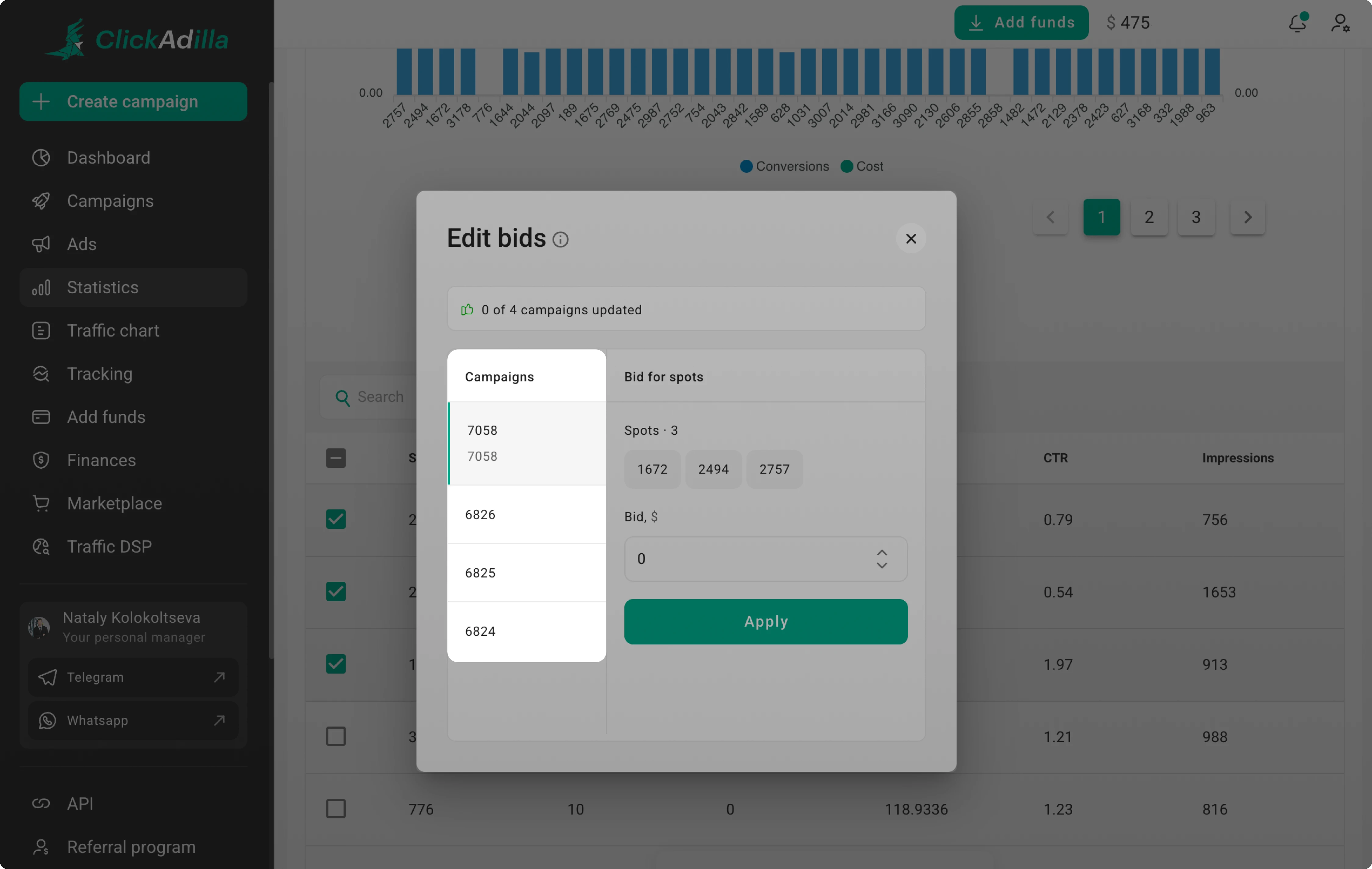
Step 7. Set new bids in the pop-up window.
The left column shows your selected campaigns:
The right column shows the spots:
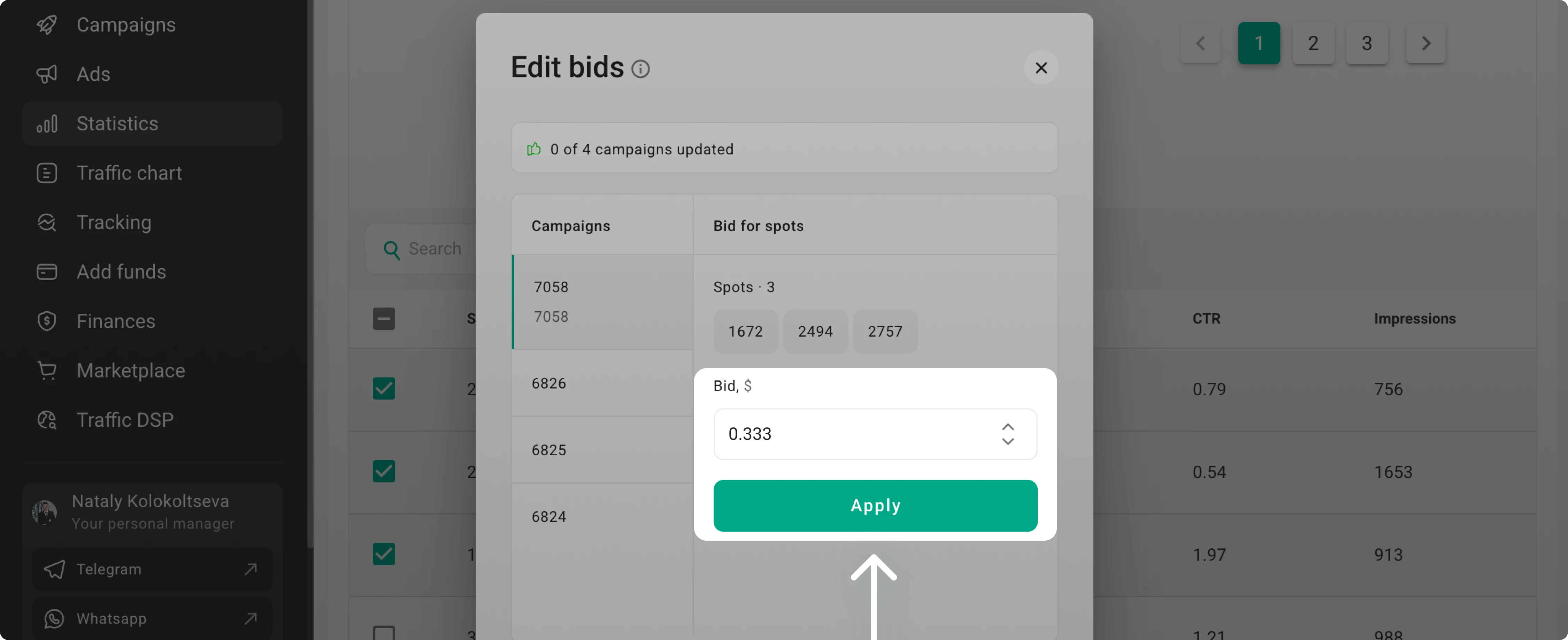
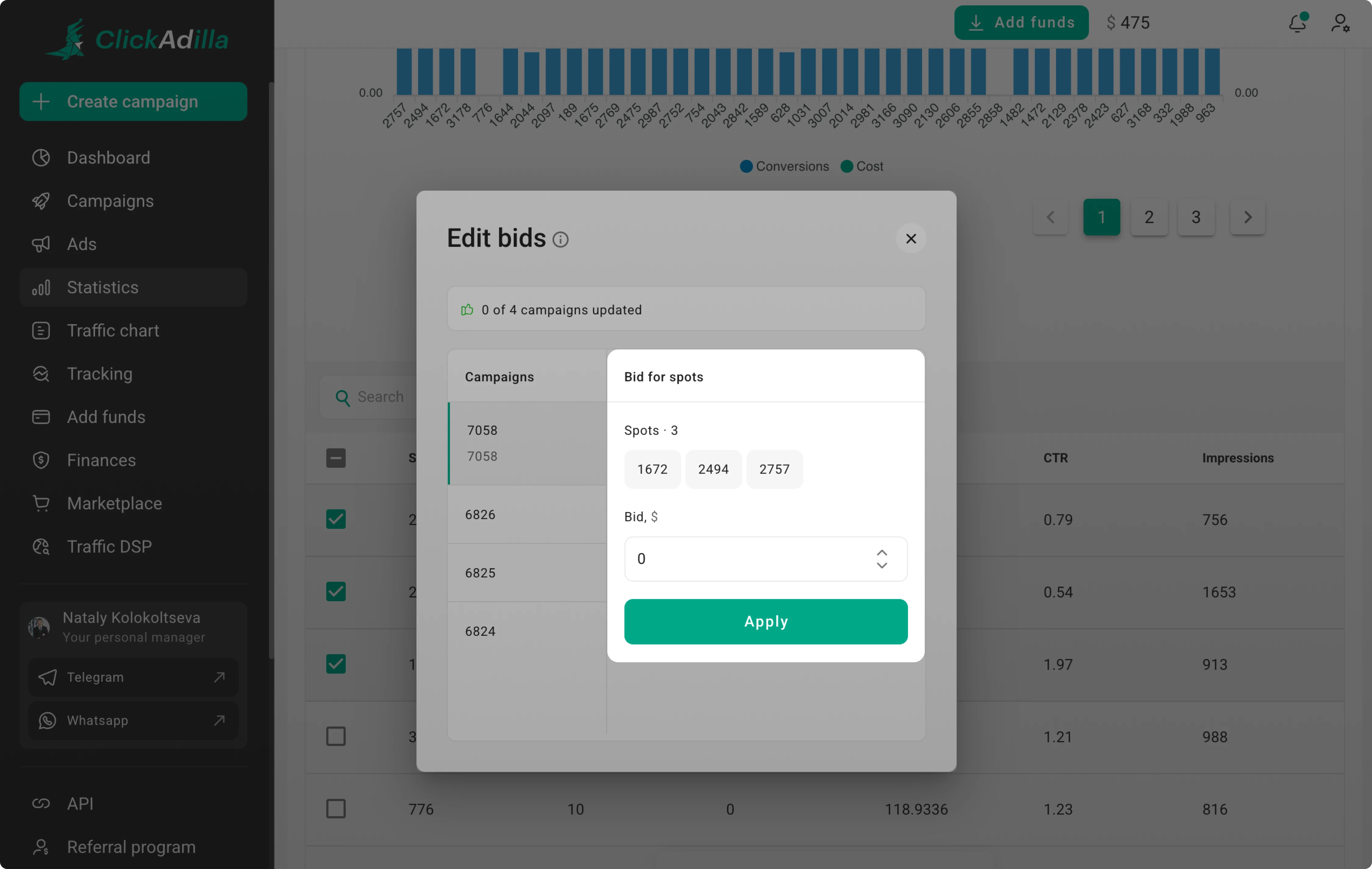 Please note. “0” is not the current bid. It is the default starting value for a new bid.
Step 8. Click Apply.
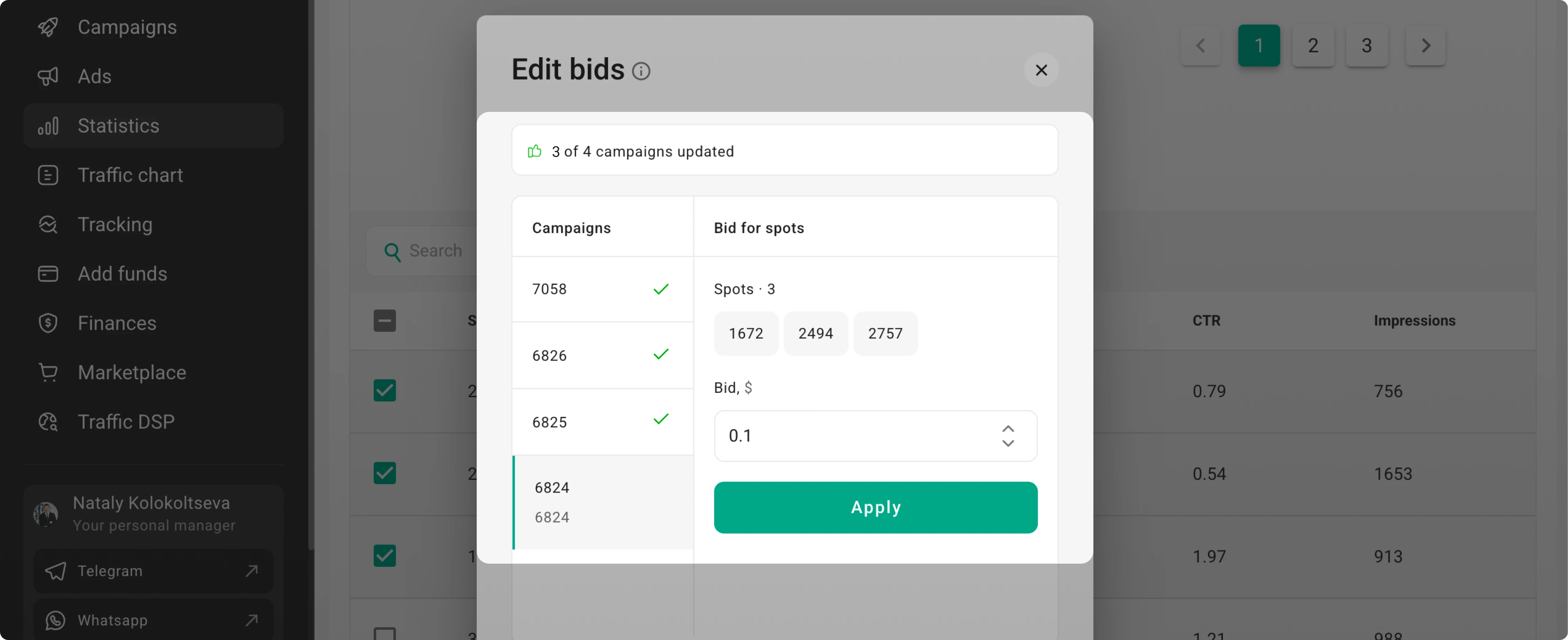
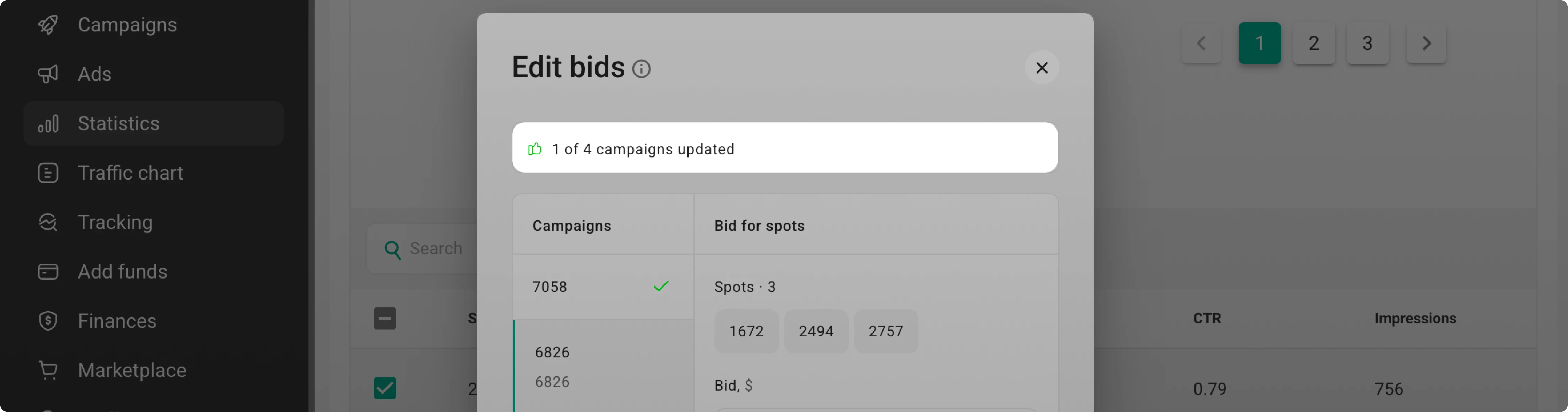 A checkmark appears next to the updated campaign tab.
Step 9. Select the next campaign, adjust bids, and apply.
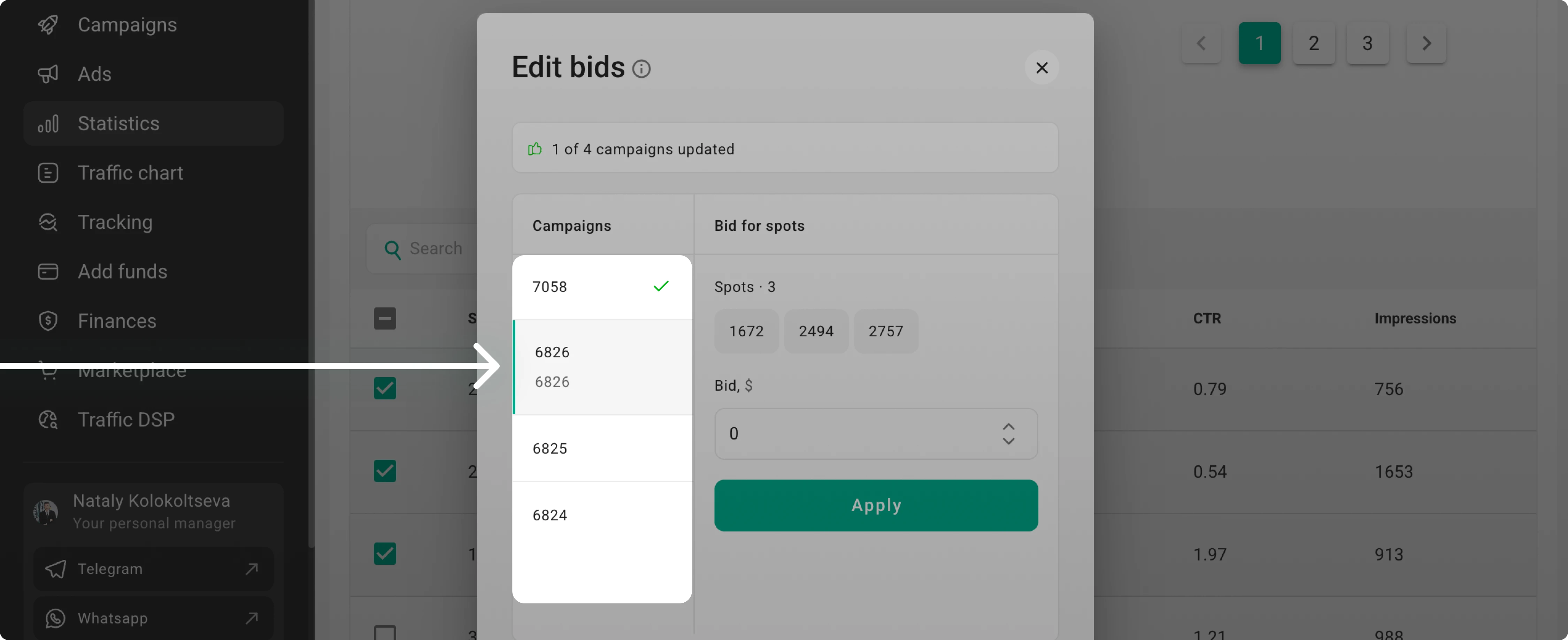
Repeat for all selected campaigns.
Blacklist and whitelist conflicts
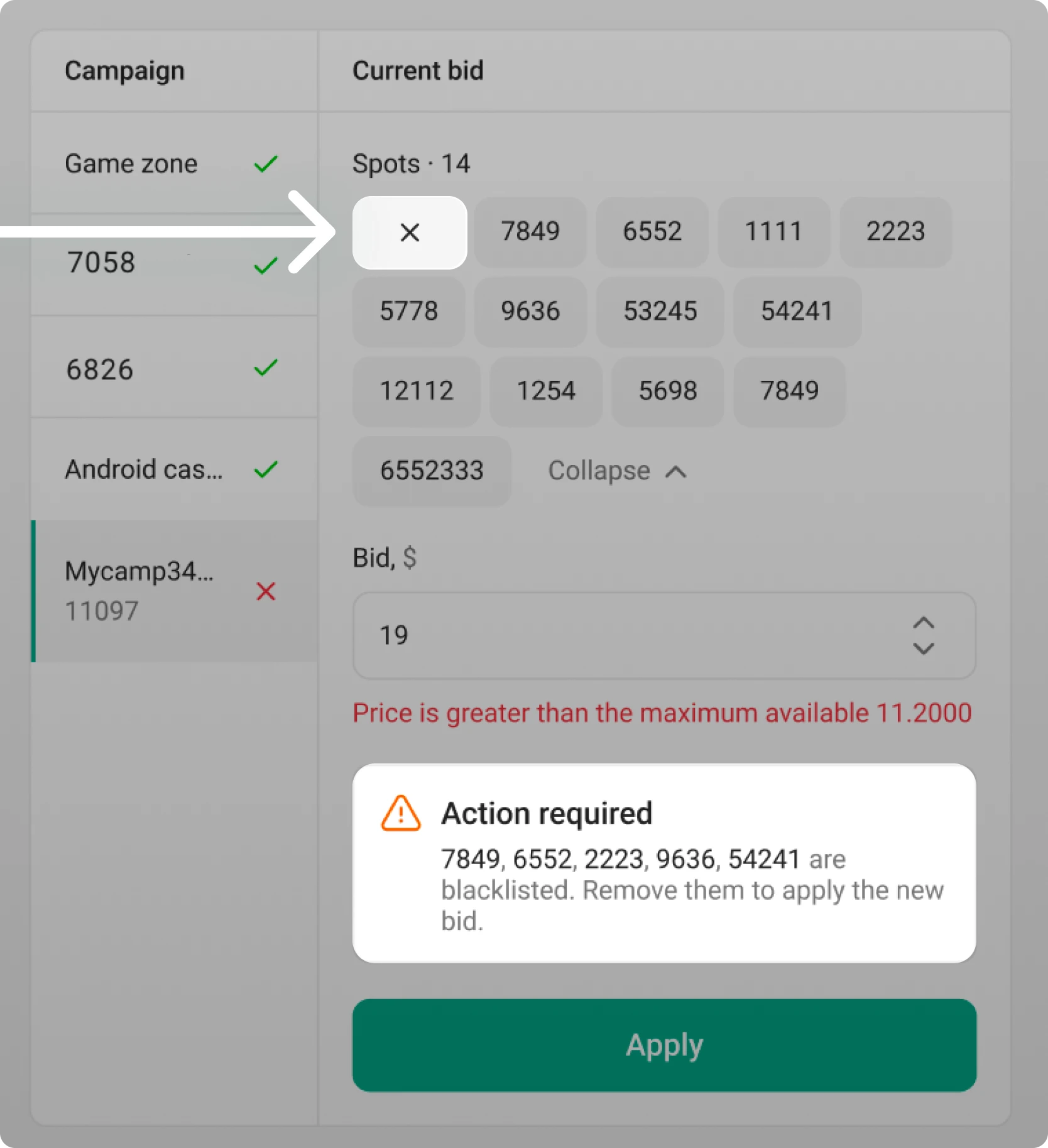
In some cases, the bid cannot be changed.
The spot is in the blacklist. The new bid does not apply if the spot is blacklisted.
The campaign has a whitelist. If your campaign uses a whitelist, the spot’s source needs to be there. To apply the bid, add the spot’s source to the whitelist first. Learn more about whitelisting and blacklisting in this guide:
Blacklisting and whitelisting →
You can also remove unchangeable spots. Hover over them and click the cross icon: